Create. Tap. Control.

Free. No subscription.

Run computer shortcuts from buttons on your phone. Start with a ready-made pad.
Requires Vibepad Link installed and running on your Mac or Windows computer.
New in 0.7 · Your phone, a mic for your Mac Download Vibepad Free on iOS & Android
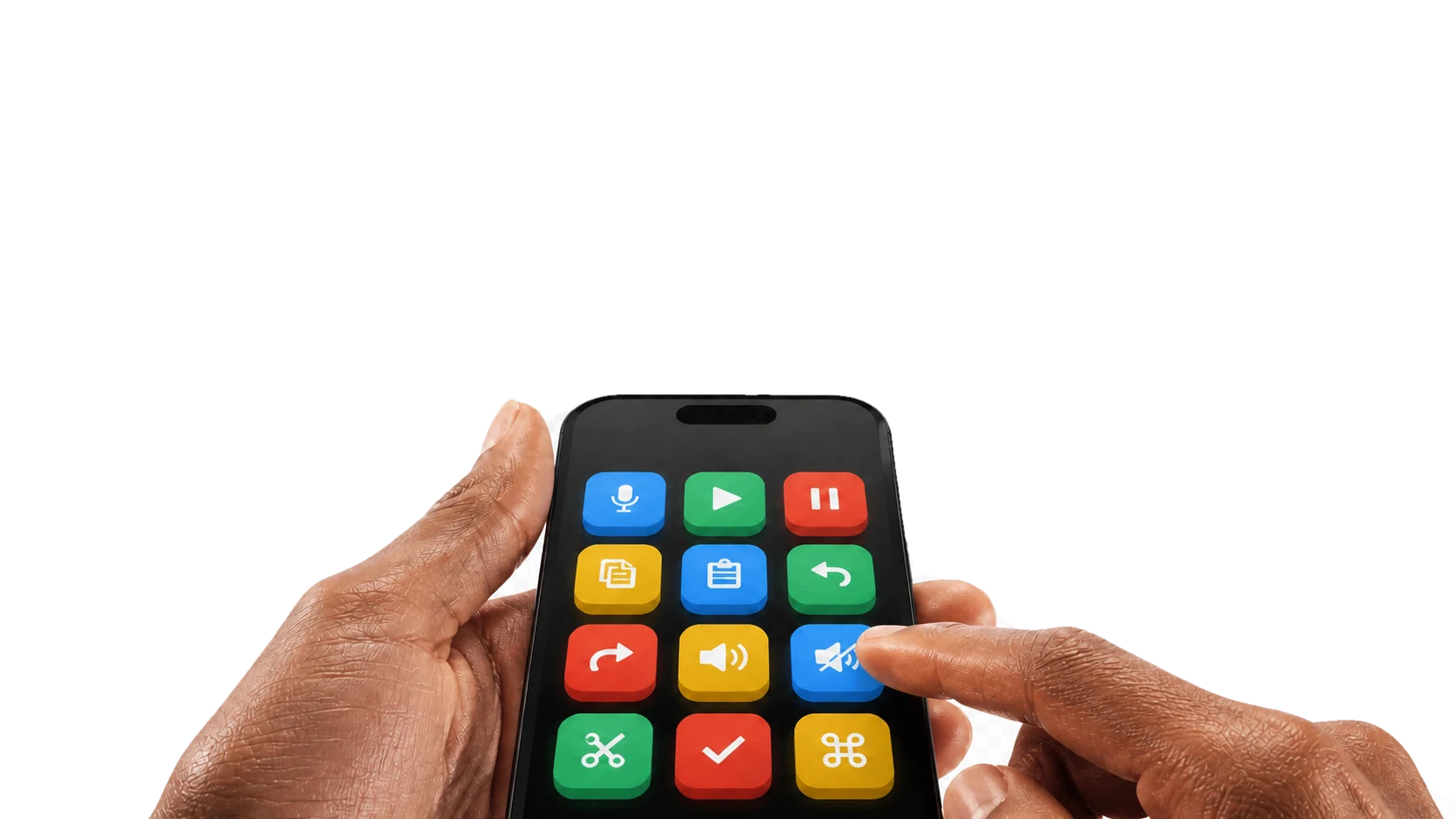
Hands using Vibepad's colorful customizable macro keypad on a phone

BLUETOOTH MICROPHONE · FOR MAC

Hold. Speak.
Keep creating.

Turn your iPhone or Android phone into a wireless microphone for your Mac’s dictation app. Put a microphone button right beside your favorite shortcuts.

  • Your voice, your workflow. Tap to start and stop, or hold to talk.
  • One button does both. Optionally trigger your dictation app’s shortcut as you speak.
  • Direct over Bluetooth. No speech API key for the microphone. Vibepad saves no recordings and uploads no microphone audio.
Get Vibepad & Vibepad Link

Requires Vibepad 0.7.0+, Vibepad Link 0.3.0+ for Mac, and Vibepad Mic installed from the helper. Keep the phone app open. Bluetooth microphone is not yet supported on Windows.

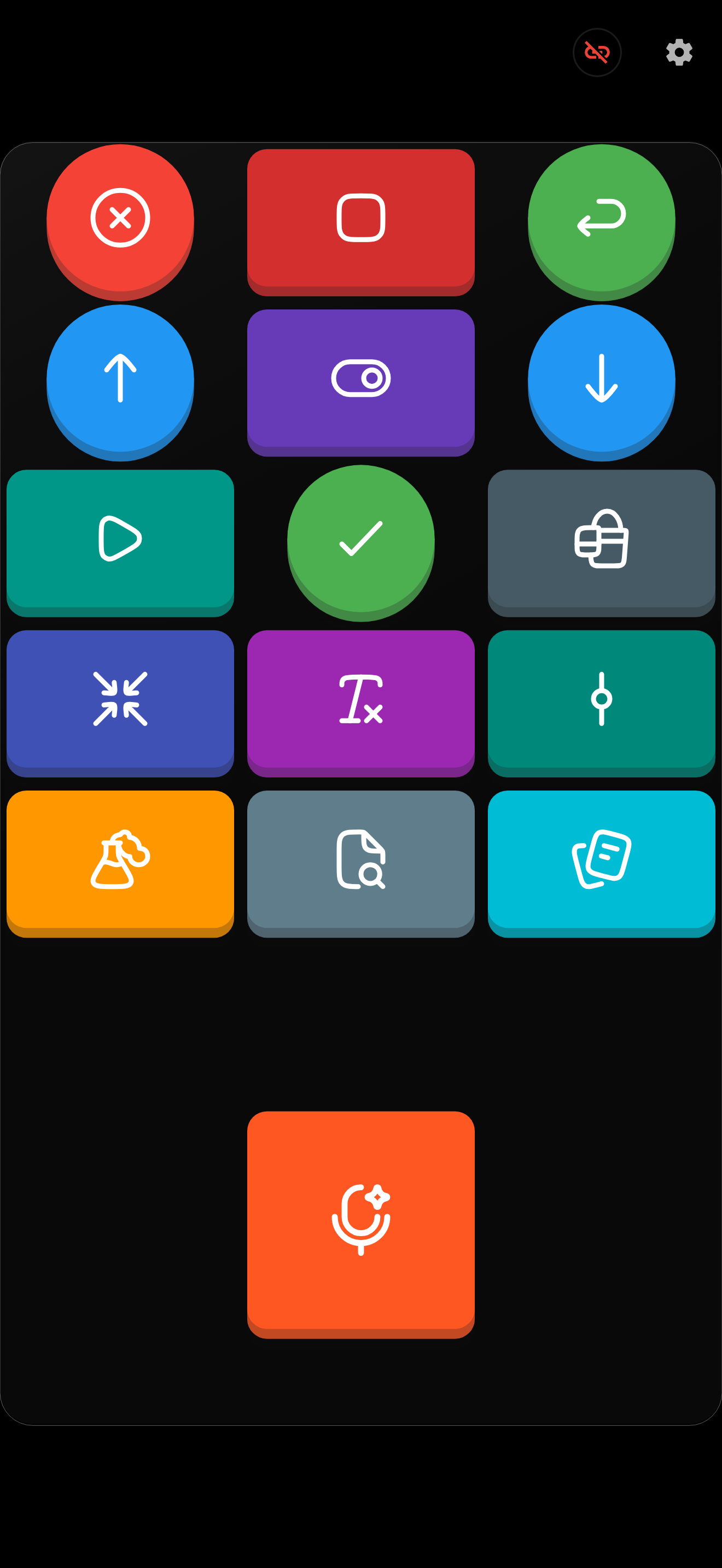
Vibepad’s Claude Code Deck with a large orange microphone button beneath the shortcut keys
Shortcuts and a microphone.
All on the phone you already own.

Set up your Mac microphone

  1. Connect your phone. Open Vibepad and the latest Vibepad Link, then pair over Bluetooth.
  2. Install Vibepad Mic. In the Mac helper, use Finish Setup or Settings → Microphone.
  3. Choose your input. Select Vibepad Mic in your dictation app, then add a Microphone button or try the Mac Claude Code or Cursor preset.

Your Mac’s dictation app turns speech into text. Its settings determine whether transcription runs locally or uses a cloud service. The separate API Speech-to-Text action remains available on Mac and Windows with your own OpenAI API key.

Make Room for
the Shortcuts You Use

Use the phone you already own

Give everyday shortcuts a place beside your keyboard

Keep useful actions within reach

Put the buttons you use together on one pad

Know what setup needs

Install Vibepad on your phone and Vibepad Link on your computer, then connect over Bluetooth

Your phone is already on your desk.

Pick a ready-made pad, connect your computer, and try your first shortcut.
Customize when you need to.

Everything You Need.
Nothing You Don't.

Completely Free

The app and desktop helper have no subscription. No dedicated keypad to buy.

Direct Bluetooth

Keep Vibepad Link running on your computer. After setup, control inputs travel directly over Bluetooth without WiFi.

App-Aware Auto-Switch

Assign a pad to a computer app, then let Vibepad switch layouts when that app becomes active.

A Microphone for Your Mac

Send phone audio to your Mac’s dictation app over Bluetooth. Tap to toggle or hold to talk. Requires the latest Mac helper and Vibepad Mic. See setup →

Swipe Shortcuts

Map one-, two-, or three-finger swipes to shortcuts, scrolling, volume, or switching pads.

1000+ Icons

Choose from thousands of icons. Drag and drop to customize. Make it truly yours.

Your First Shortcut
in Three Steps

1

Download the App

Install Vibepad on your phone and choose a ready-made pad for your work

2

Install Helper App

Install and open Vibepad Link on your Mac or Windows computer. Follow its Bluetooth and permission guidance

Download Desktop Helper
3

Connect and Try a Button

Follow the connection steps, open the app you want to control on your computer, and try a matching shortcut

Layouts That
Think Ahead

Assign a layout to each computer app to switch the buttons you see

Cursor AI
Cursor

Design Your Setup
on Desktop

Use our web-based Pad Builder to create and customize your button layouts on a bigger screen. Export a JSON file and import it on your phone.

Design on desktop
Export as JSON
Import on phone

Frequently Asked
Questions

Vibepad and Vibepad Link have no subscription or in-app purchases. The app is ad-supported. Optional speech-to-text uses your own OpenAI API key; that service may charge for usage.

Vibepad runs on iPhone and Android, with Vibepad Link on a Mac or Windows computer. Check the app store listing and helper download for current OS requirements.

Install and open Vibepad Link on your computer, then follow its setup guide to connect your phone over Bluetooth Low Energy (BLE). The helper must stay running. QR links can guide you to the phone app and setup; they do not replace the Bluetooth connection.

Yes. Vibepad Link must be installed and running on your computer to receive Bluetooth commands and send keyboard or pointer input. Follow the helper’s permission guidance, including Accessibility access on macOS.

After installation and setup, keyboard and pointer inputs work over Bluetooth without internet. Downloads, updates, and optional speech-to-text require internet.

Create multiple pads with customizable grids. To switch them automatically, assign a computer app to each pad in the app’s settings.

Ready to Ditch
the Hardware?

Download Vibepad free on iOS or Android.
Your phone becomes your Stream Deck in seconds.